Up and running
in two minutes.
No accounts, no configuration, no cloud setup. Install TypeSay, pick a model, and start talking.
Purchase & Download
Head to the purchase page and grab your license. After payment, you will receive a download link for your platform. TypeSay is available as:
- ✓ Windows: .msi installer (Windows 10 and later)
- ✓ macOS: .dmg installer (macOS 11 and later, Universal binary)
- ✓ Linux: .AppImage or .deb (Ubuntu 20.04+, Fedora 36+, Arch)
The installer is approximately 5 MB. No admin privileges required on most systems.
Purchase TypeSay — $249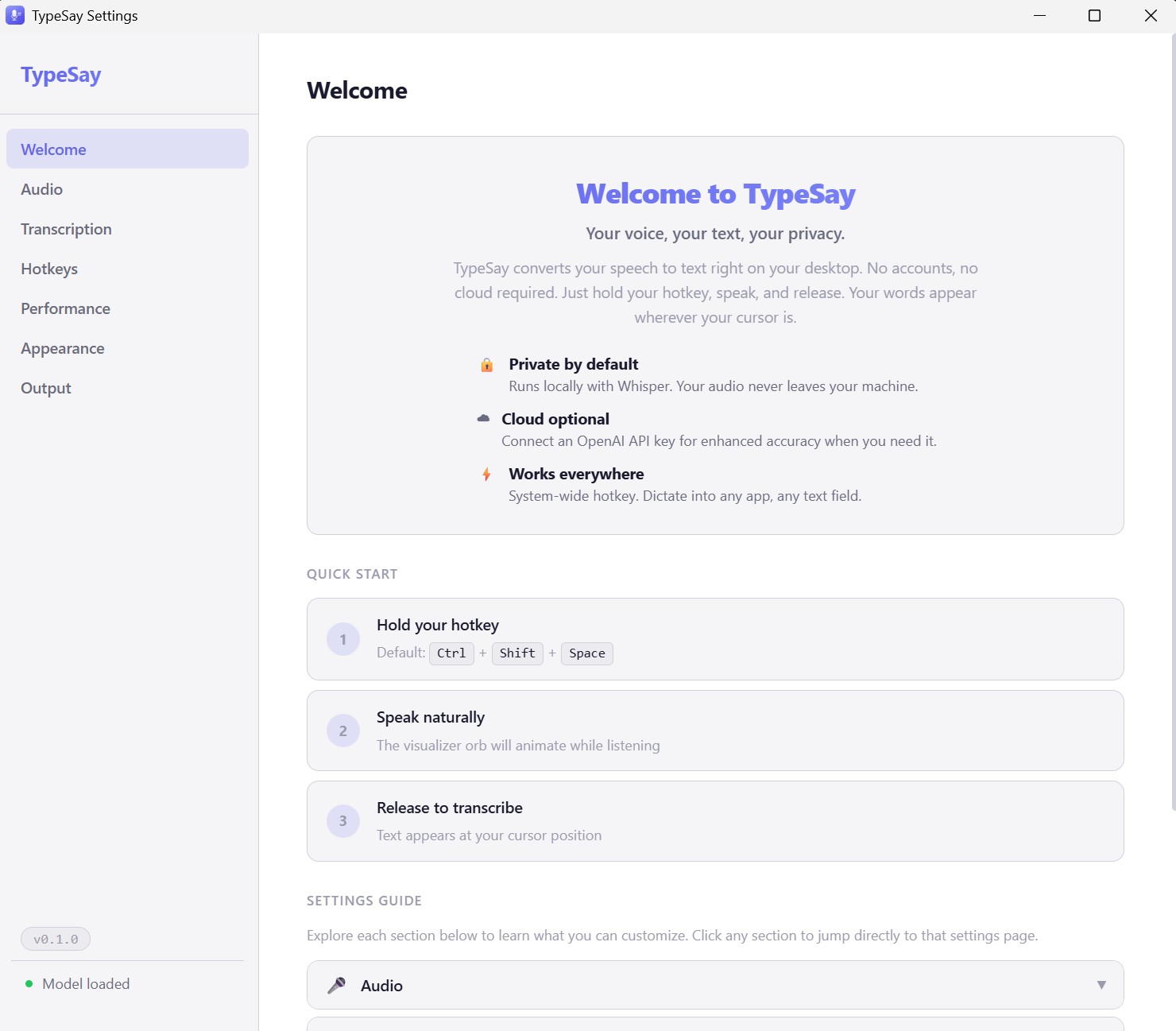
Run the Installer
Double-click the downloaded file and follow the prompts. There is no bloatware, no bundled software, and no "custom install" traps. The installer does exactly one thing: puts TypeSay on your machine.
🪟 Windows
Run the .msi file. Follow the setup wizard. TypeSay will appear in your Start menu.
🍎 macOS
Open the .dmg file. Drag TypeSay into your Applications folder. On first launch, right-click and select Open to bypass Gatekeeper.
🐧 Linux
Make the .AppImage executable (chmod +x TypeSay.AppImage) and run it. Or install the .deb with your package manager.
Choose Your Whisper Model
On first launch, TypeSay will prompt you to download a Whisper AI model. This is a one-time download from HuggingFace. After that, everything runs offline.
Pick the model that fits your hardware:
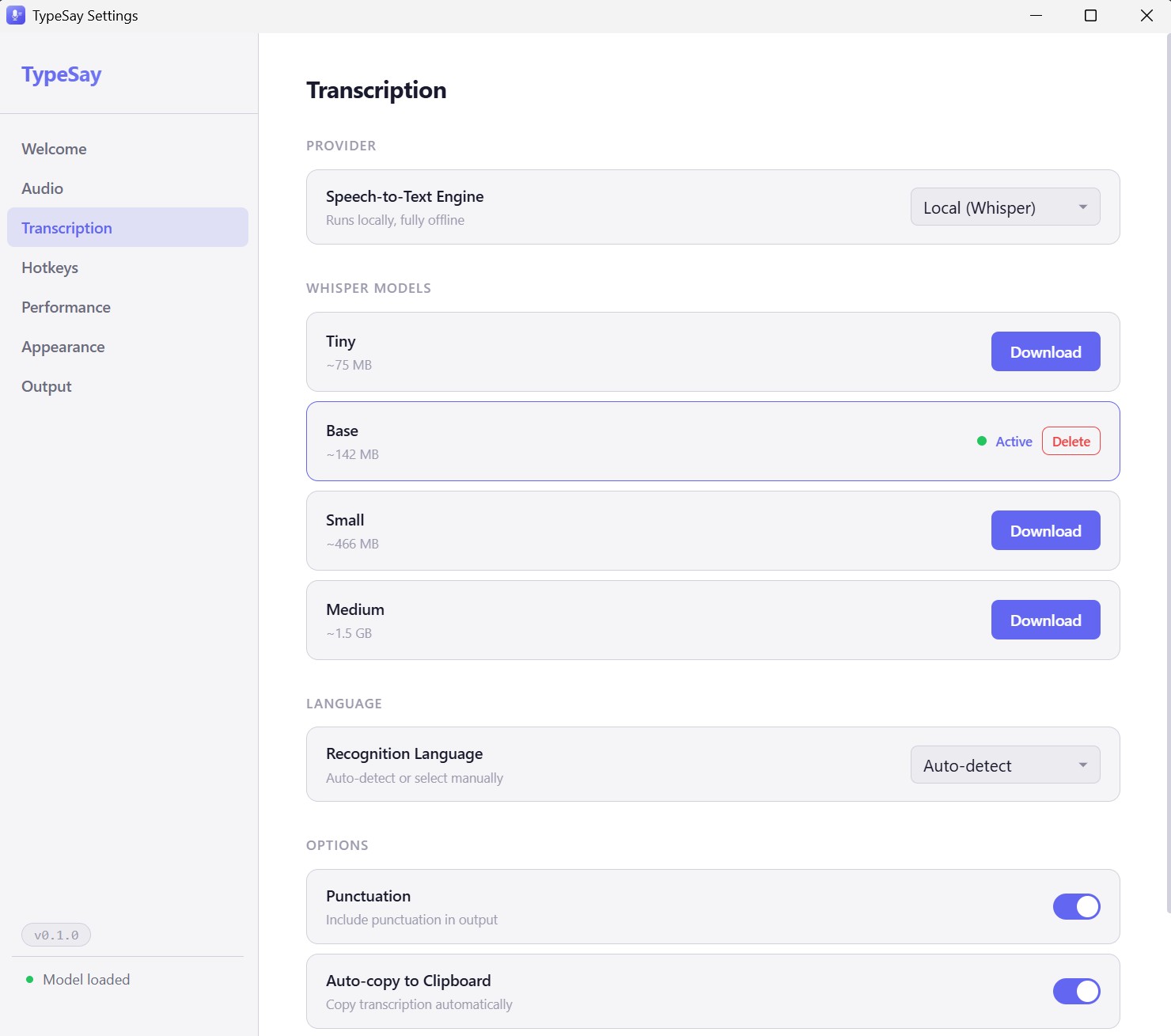
| Model | Size | Speed (10s audio) | Accuracy | Best For |
|---|---|---|---|---|
| Tiny | 75 MB | ~1 second | Good | Quick notes, fast hardware |
| Base | 142 MB | ~2-3 seconds | Better | Everyday use (recommended) |
| Small | 466 MB | ~5-8 seconds | Great | Professional work, multi-language |
| Medium | 1.5 GB | ~15-20 seconds | Best | Maximum accuracy, GPU recommended |
You can switch models anytime from Settings without restarting TypeSay.
Start Dictating
Once your model is downloaded, you are ready to go. Three steps, every time:
Hold your hotkey
Press and hold the keyboard shortcut. The default is Ctrl + Shift + Space
Speak naturally
Talk at your normal pace. The floating visualizer orb animates in real time so you know TypeSay is listening.
Release to type
Let go of the hotkey. Your words are transcribed locally and inserted at your cursor position in under 3 seconds.
Enable GPU Acceleration
TypeSay works great on CPU alone, but GPU acceleration makes transcription significantly faster.
🟢 NVIDIA (CUDA)
Install the latest NVIDIA drivers with CUDA support. TypeSay detects CUDA automatically. No additional setup needed. Recommended for Windows and Linux users with NVIDIA GPUs.
🍎 Apple Silicon (Metal)
Metal acceleration is enabled automatically on Apple Silicon Macs (M1, M2, M3, M4). No drivers or configuration required.
🔷 Vulkan (Cross-Platform)
For AMD GPUs or Intel integrated graphics, Vulkan provides cross-platform acceleration. Make sure your GPU drivers are up to date. TypeSay will detect Vulkan support on launch.
Check Settings > Performance to confirm which backend TypeSay is using.
Get the most out of TypeSay
Use a dedicated microphone
A USB microphone or headset mic produces cleaner audio than a built-in laptop mic. Cleaner audio means more accurate transcription, especially with the smaller models.
Set your language manually
Auto-detection works well, but setting a specific language in Settings removes the detection step and slightly improves both speed and accuracy.
Try both insert modes
Type Simulation works in most applications, but some apps (terminals, elevated windows) work better with Clipboard Mode. Switch between them in Settings > Output.
Customize your hotkey
The default shortcut works for most people, but you can set any combination you prefer. TypeSay validates shortcuts in real time to prevent conflicts with other applications.
Questions? We have answers.
Browse our FAQ, troubleshooting guides, and support resources to get the most out of TypeSay.
Visit Support